
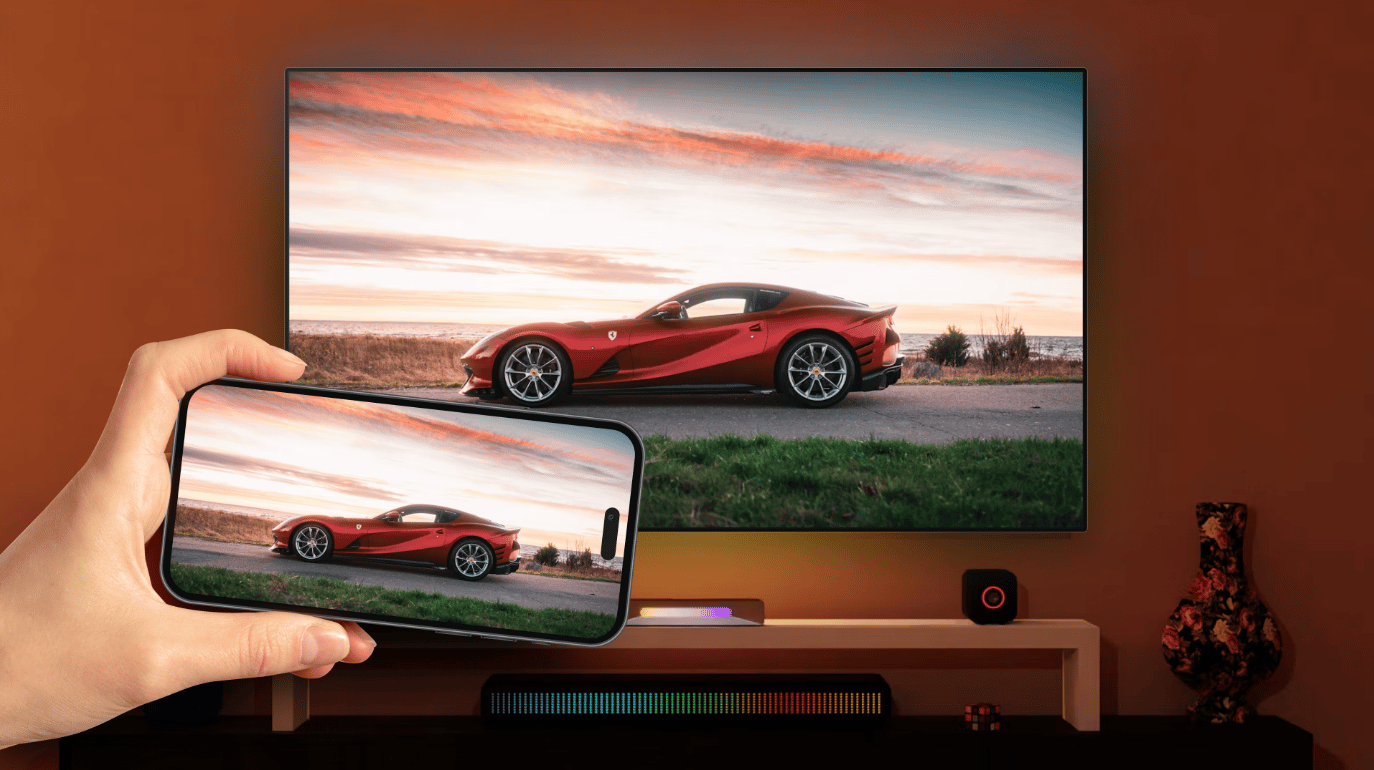
I had a video on my iPhone that I wanted to watch on a bigger screen. Watching it on my phone was fine for a few minutes, but I wanted to sit back on the couch and enjoy it on my TV instead. The problem was figuring out how to get the video from my iPhone to the television without dealing with cables or spending half the evening trying to connect the two devices.
If you’ve ever searched for a way to mirror your iPhone screen to a TV, you probably know there are several options. Some TVs support Apple’s AirPlay, while others work with Chromecast, Roku, Fire TV, or different wireless streaming technologies. The right method depends on the devices you have at home.
I decided to try DoCast, a screen mirroring app for iPhone that offers a way to connect compatible devices wirelessly. Here’s how the process works and what to know before getting started.
Why I Needed Screen Mirroring from My iPhone
My phone already had everything I wanted to watch, so downloading the same files to another device seemed unnecessary. I just wanted to display content from my iPhone on the TV and control everything from my phone.
There are plenty of situations where this comes in handy. You might want to show vacation videos to your family, share photos with friends, display a presentation, or watch a video saved on your device. A larger screen makes these activities much more comfortable.
The challenge is that not every television supports the same wireless connection methods. While AirPlay works with compatible TVs, other models may require a different approach.
That’s why I started looking for a way to connect my iPhone to my TV wirelessly without relying exclusively on AirPlay.
How I Set Up DoCast for Screen Mirroring iPhone to TV
Step 1: Check the Wi-Fi Connection
Before opening the app, make sure your iPhone and TV are connected to the same Wi-Fi network. This is an important step because wireless screen mirroring generally relies on both devices being able to communicate over the local network.
Your TV or streaming device also needs to support a compatible connection method. Depending on your setup, that might mean a supported Smart TV, a Chromecast device, a Roku player, or a Fire TV device.
Checking these requirements first can save you time if your TV doesn’t appear in the app.
Step 2: Connect Through DoCast
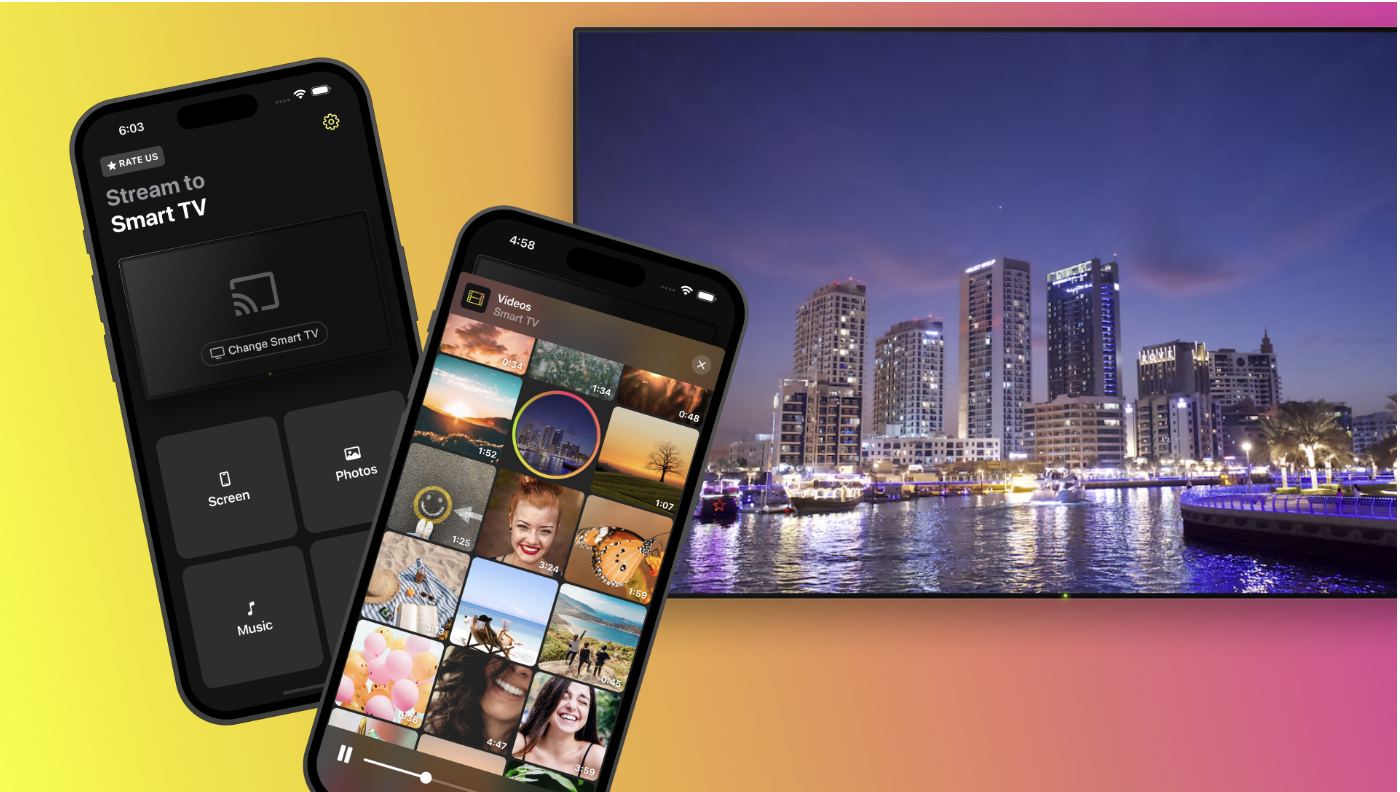
I installed DoCast from the App Store and opened it on my iPhone.
The app helps connect an iPhone or iPad to compatible TVs and streaming devices. After opening it, select the available device you want to use and follow the on-screen instructions to establish the connection.
One advantage of this approach is that you don’t need to start by looking for an HDMI adapter or connecting a cable between your phone and the TV.
You can find more information about supported devices and connection options on the official DoCast website.
Step 3: Start Screen Mirroring
Once the connection is ready, open the screen mirroring option in DoCast and follow the prompts to start a session.
The app provides settings for adjusting aspects of the mirroring experience, including screen rotation and quality options. These can be useful when you want content to fit the TV screen properly, especially when switching between portrait and landscape orientation.
After starting the session, your iPhone screen can be displayed on a compatible TV, allowing you to show more than just a single video or photo.
Step 4: Open the Video on Your iPhone
With screen mirroring running, navigate to the content you want to display. You can use your iPhone to browse photos, open supported videos, or move between different types of content.
Instead of having everyone gather around a small phone screen, you can display compatible content on the TV and enjoy it from the couch.
When you’re finished, return to DoCast and stop the mirroring session.
The process is relatively straightforward once your devices are compatible and connected to the same network.
What If Your TV Doesn’t Support AirPlay?
Not every Smart TV supports AirPlay. A television can connect to Wi-Fi and run streaming apps without necessarily supporting Apple’s built-in screen mirroring feature.
This can be frustrating if you want to display your iPhone screen but can’t find an AirPlay option in your TV settings.
DoCast provides an alternative for compatible devices, including supported Smart TVs and streaming devices that use technologies such as Chromecast, Fire TV, Roku, or DLNA. The available connection method depends on the device and its compatibility.
Before trying to connect, check whether your particular TV model or streaming device is supported. Compatibility can vary even between televisions from the same manufacturer.
You can explore the available features and supported connection options on the DoCast website.
It’s also worth remembering that screen mirroring and casting are not available in exactly the same way on every device. If one method doesn’t work with your setup, another supported connection method may be more suitable.
Screen Mirroring vs. Casting a Video
While looking into ways to watch videos on a TV, I realized that screen mirroring and casting aren’t quite the same thing. Both can help you enjoy content on a bigger screen, but they work differently.
Screen mirroring displays your phone’s screen on the TV. This is useful for presentations, photos, browsing, and other content you want to show from your device. The TV displays what is happening on your iPhone, so you can navigate between apps and screens.
Video casting sends supported media to the TV without necessarily displaying everything happening on your phone. This can be more convenient when you only want to watch a video or share a media file.
DoCast offers both screen mirroring and media casting options, allowing you to choose the approach that suits your needs.
There is one important limitation to remember: screen mirroring may not work with protected content from services such as Netflix, Amazon Prime Video, and Apple TV+. These services can restrict mirroring because of content protection rules. If you’re trying to watch something from a streaming platform, check whether that service supports your chosen method.
Understanding the difference between mirroring and casting can help you choose the right option before you start.
Things to Check Before You Start Screen Mirroring
If you want to try screen mirroring iPhone to TV yourself, a few simple checks can help prevent common connection problems.
- Check your Wi-Fi connection. Make sure your iPhone and the TV or streaming device are connected to the same network when required by the connection method.
- Confirm device compatibility. Check whether your TV model or streaming device supports the connection method offered by the app.
- Keep your devices updated. Updating your iPhone, the app, and your TV software may help resolve connection issues.
- Check your network settings. If the TV doesn’t appear in the list of available devices, make sure your network allows devices to discover and communicate with each other.
- Restart the connection if necessary. Closing and reopening the app or restarting the TV can sometimes help when a device isn’t detected.
- Consider content restrictions. Some streaming services prevent protected video from being displayed through screen mirroring.
A stable Wi-Fi connection can also make a difference to the smoothness of playback. If the video lags or the image quality drops, try moving closer to your router or reducing network congestion.
Taking a moment to check these details can make the setup process much easier.
Final Thoughts
Getting a video from my iPhone onto a TV doesn’t have to involve cables, transferring files, or figuring out a complicated setup. Once you know which wireless connection methods your TV supports, it’s easier to find an approach that works.
Screen mirroring is useful when you want to share photos, display presentations, or show compatible content from your phone on a larger screen. Casting can be a better option when you simply want to play a supported video on your TV.
DoCast is one option worth considering if you want to mirror your iPhone screen or cast supported media to a compatible TV. Checking device compatibility and connecting your devices correctly are the main things to do before starting.
You can learn more about the app on the DoCast website or download it from the Apple App Store.
0 comments
No comments yet. Start a thoughtful conversation.