
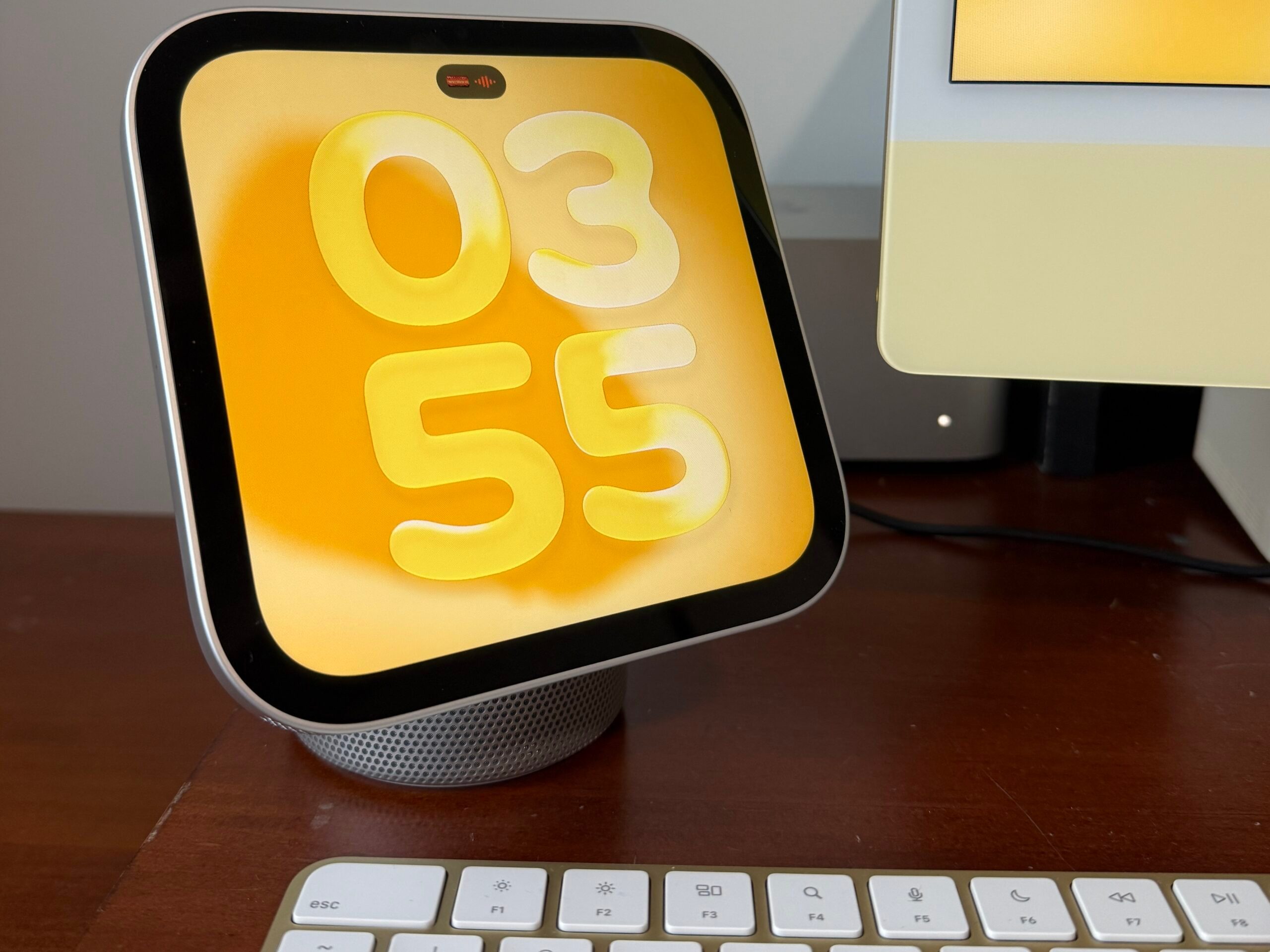
Today is a huge day because Apple officially launched the Apple HomeView. Once many Apple HomeViews started to arrive in customers’ homes, many people discovered even more interesting details about the Apple HomeView. Here are the top 5 tidbits you should know about the Apple HomeView.
- While you can set up the Apple HomeView using your iPhone as shown in several unboxing videos on YouTube, you can set that home hub up with your iPad instead. However, keep in mind that that will force you to use your iPad as the ‘primary device,’ you wouldn’t be able to access some of the supported third-party apps that are installed on your iPhone directly on the HomeView. So if you want to access those, I would strongly recommend setting up Apple HomeView using your iPhone in the first place, so you’d get instant access to those supported apps such as Spotify and Patreon. If you did already set up the HomeView using your iPad and want to access those apps that I mentioned, just go to Settings on your iPhone, go to your Profile > Find My. From there, tap ‘Use This iPhone as My Location,’ and all the supported apps on your iPhone will show up your HomeView.
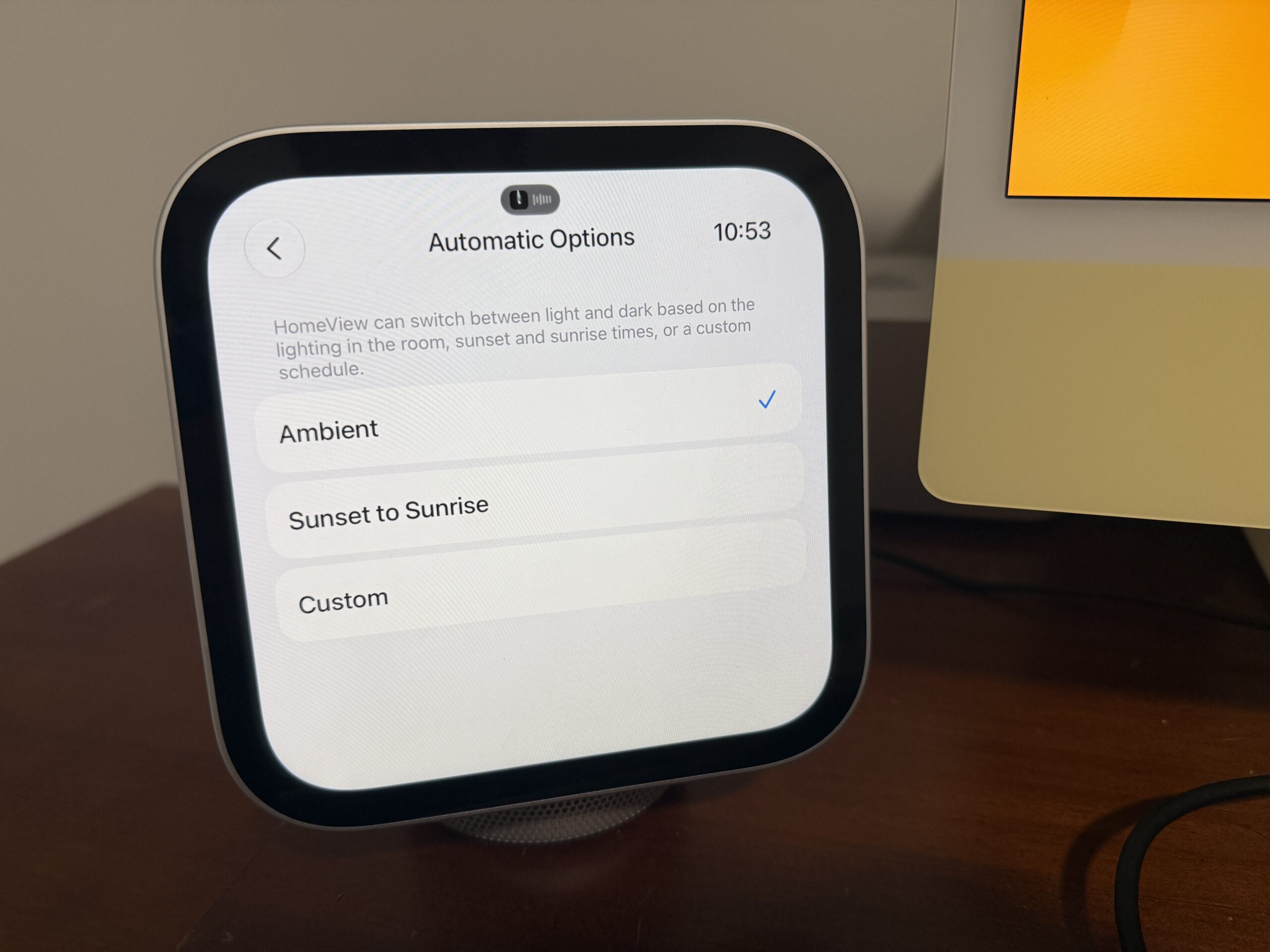
- Just like other Apple products, you can toggle Dark Mode on/off, and there’s even an Automatic mode, but if you look closely, there’s a new option for that mode: Ambient. What this option does is that HomeView will use the built-in ambient light sensor to detect the ambient lighting in the room. So if the lights in your room are on, the Dark Mode will turn off on the HomeView; when you turn off the lights or dim them to a very low level, then Dark Mode will kick in. I like this feature since it makes great use of that ambient light sensor, but sadly, this option is not available on other Apple products that do have an ambient light sensor.
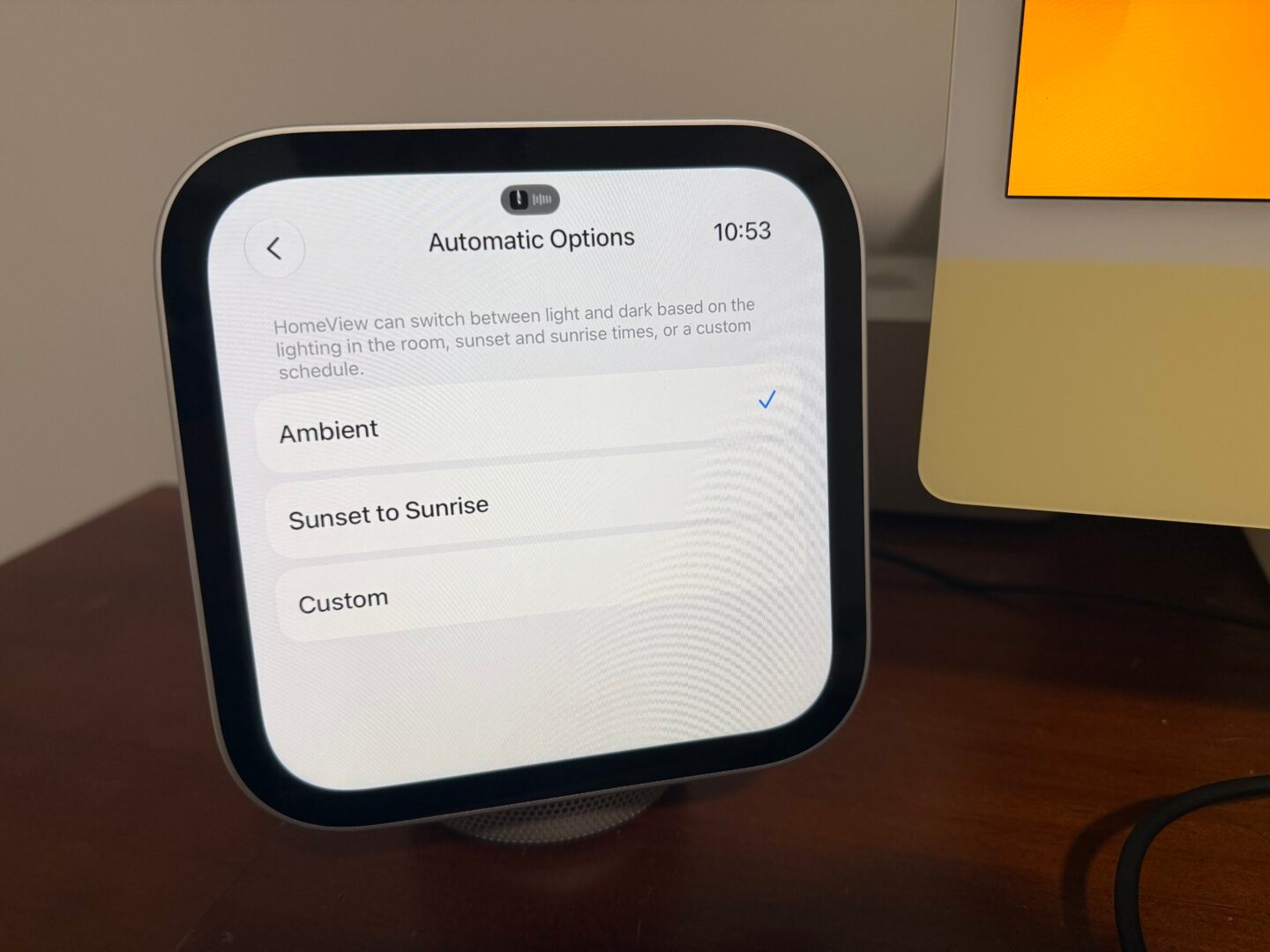
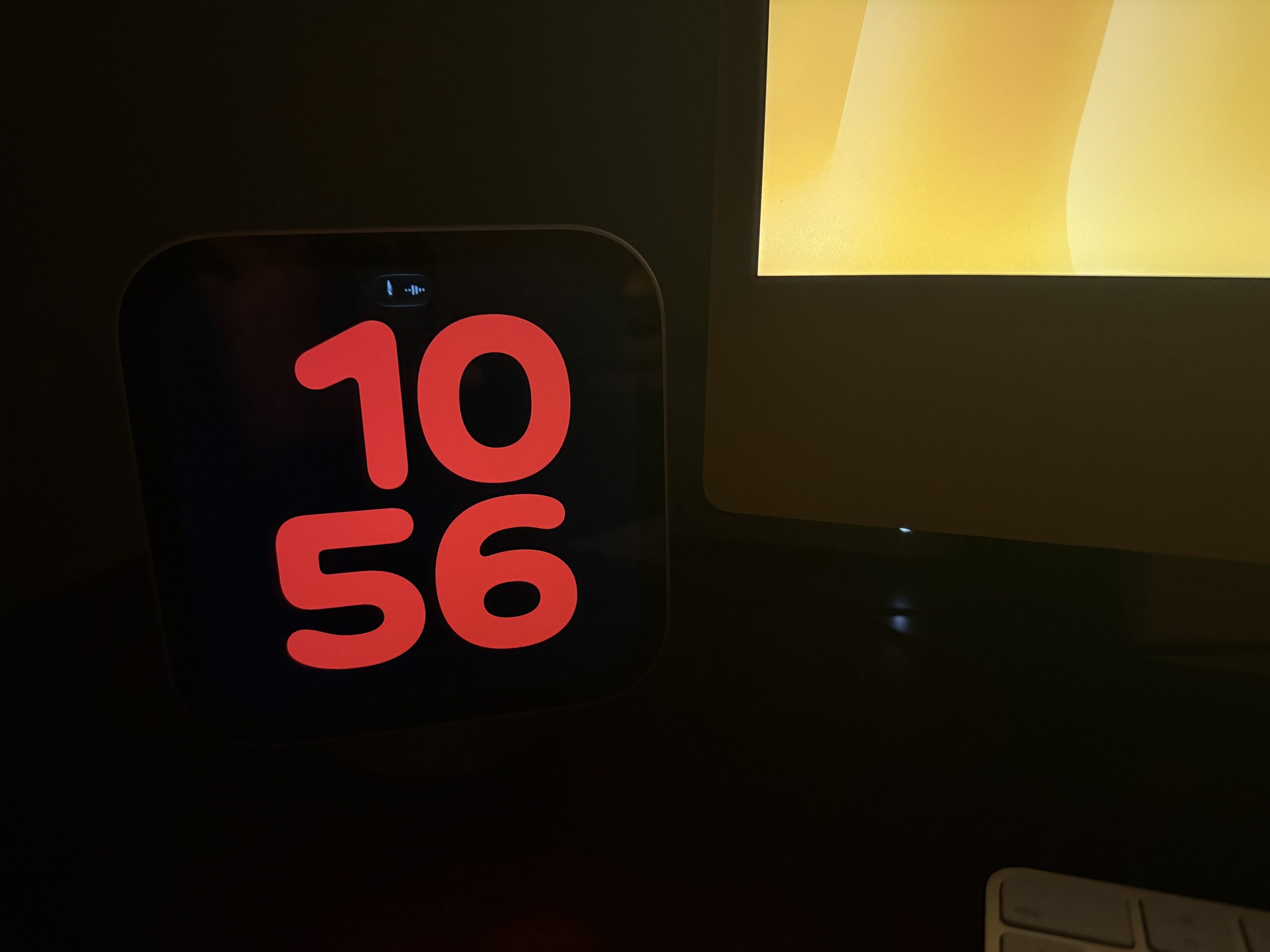
Image credit: Appleosophy - Speaking of lighting, since the HomeView’s display can go down to 0.3 nits of brightness, when you turn off the lights and you’re on a HomeView face, it will trigger Night Mode, where the clock turns red, so it’s easier on your eyes. This is similar to how it works on the iPhone’s StandBy mode and the Apple Watch Ultra’s exclusive watch faces.
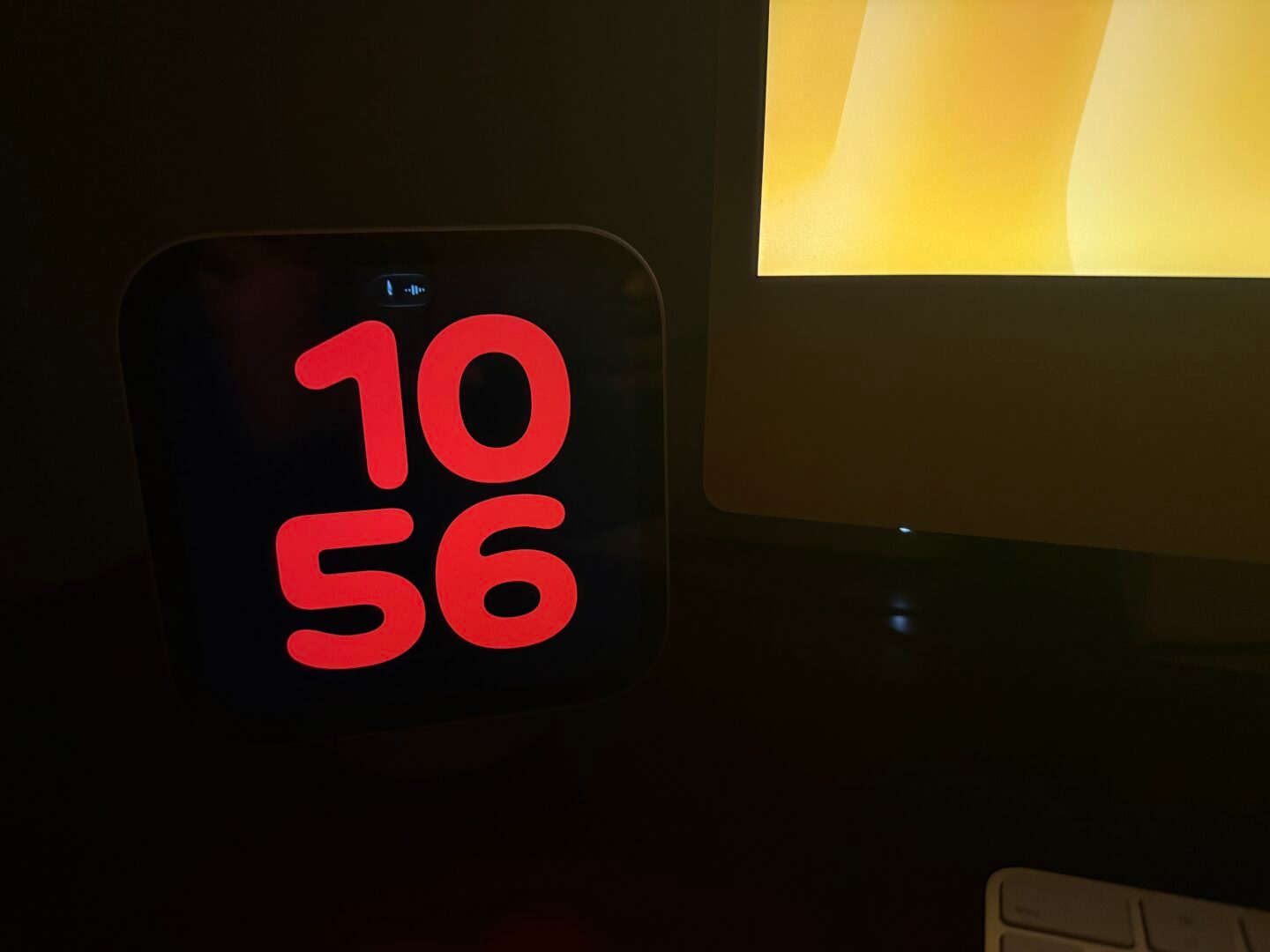
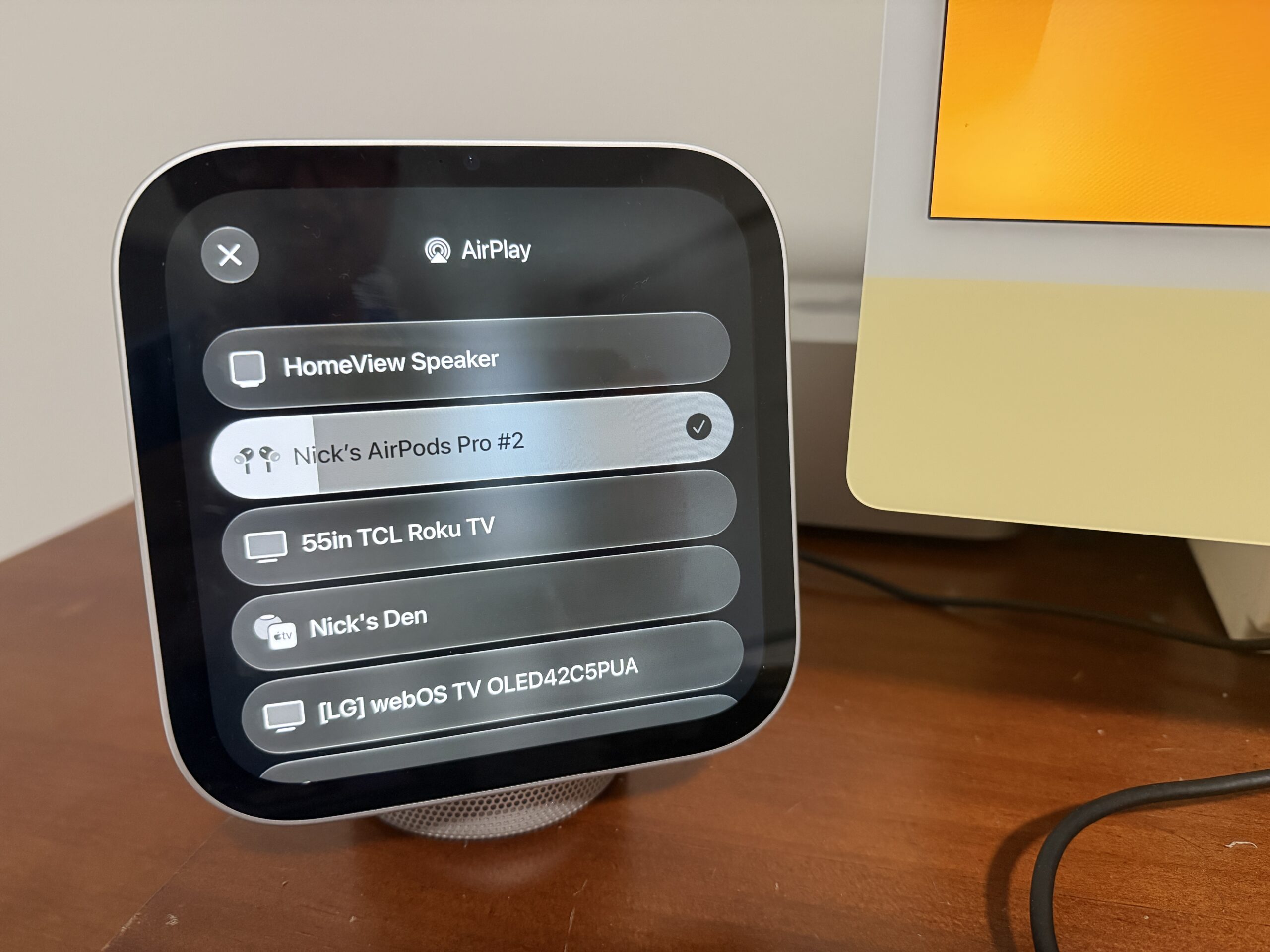
Image credit: Appleosophy - Not only can you AirPlay audio on your HomeView to other HomePod and Apple TV models, but you can also use your AirPods to listen from your HomeView. However, as noted by Dylan (@DylanMcD8), it does not support Spatial Audio.
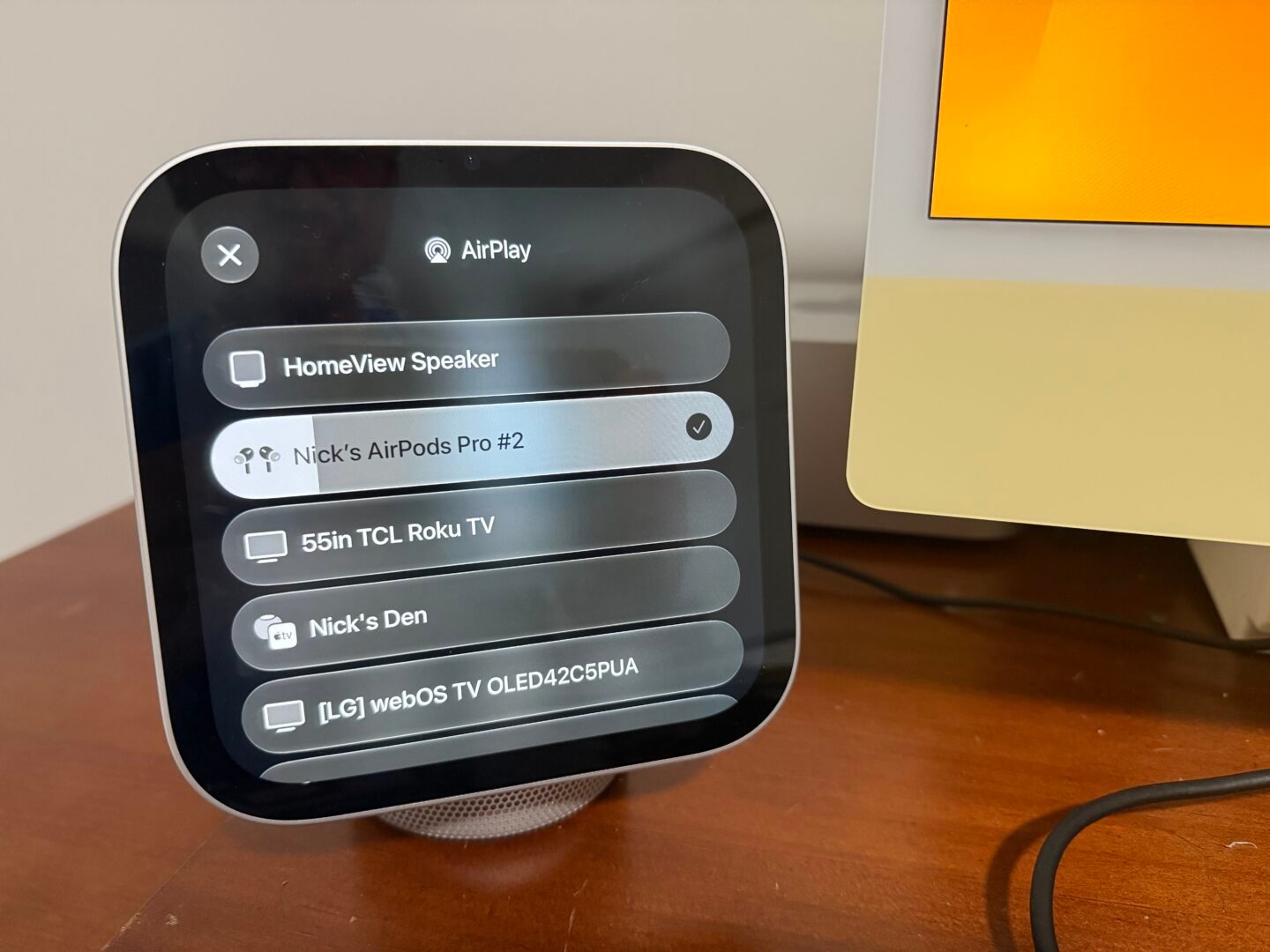
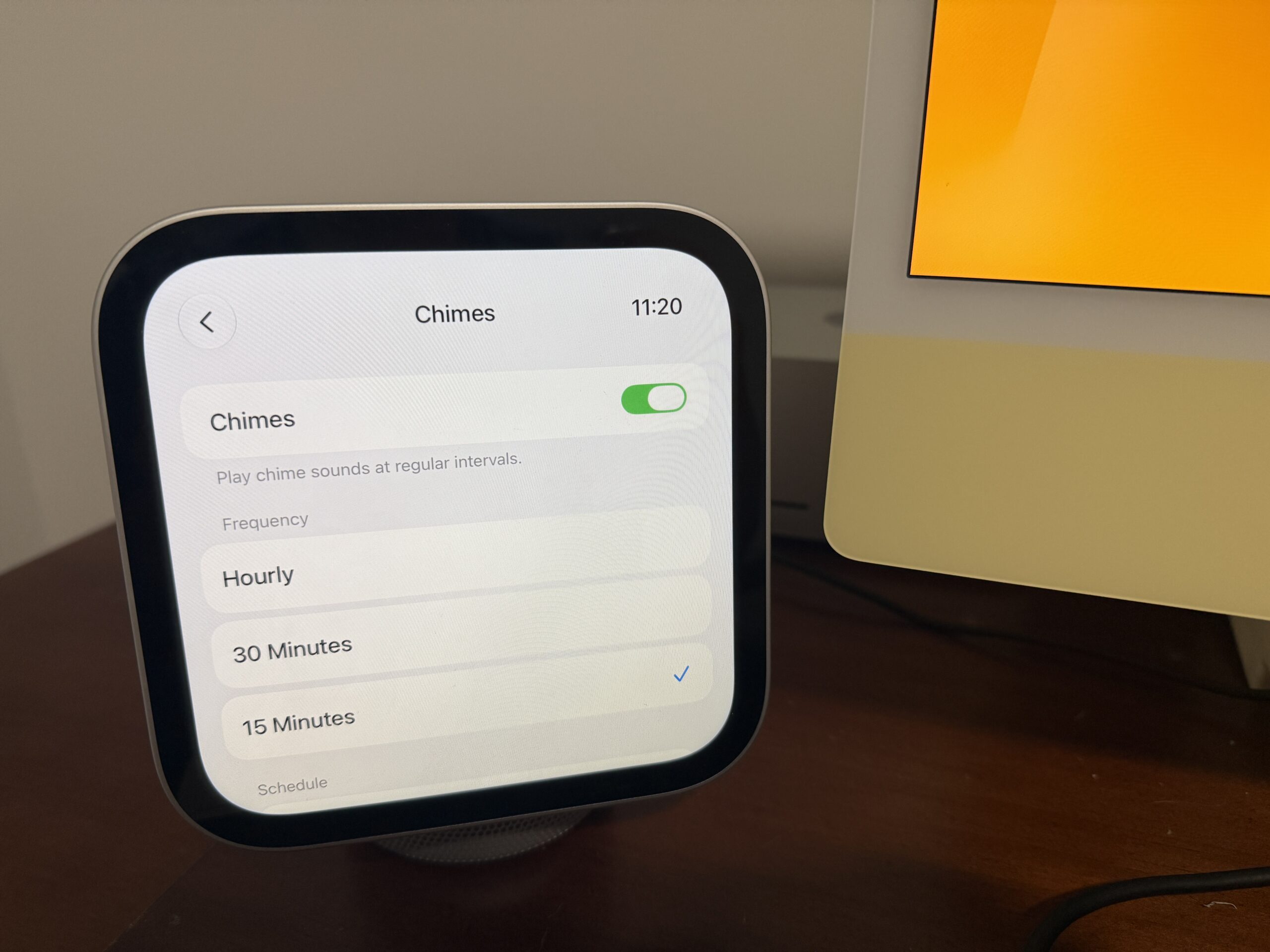
Image credit: Appleosophy - Just like on Apple Watch, the HomeView can now play chimes for the clock face. To turn on that option, go to Settings > [Your Profile] > Accessibility > Audio & Visual > Chimes. You can even change the frequency of when the chime will play with three options: Hourly, 30 minutes, and 15 minutes, and each option has a different tone. (Thanks, Dylan!)
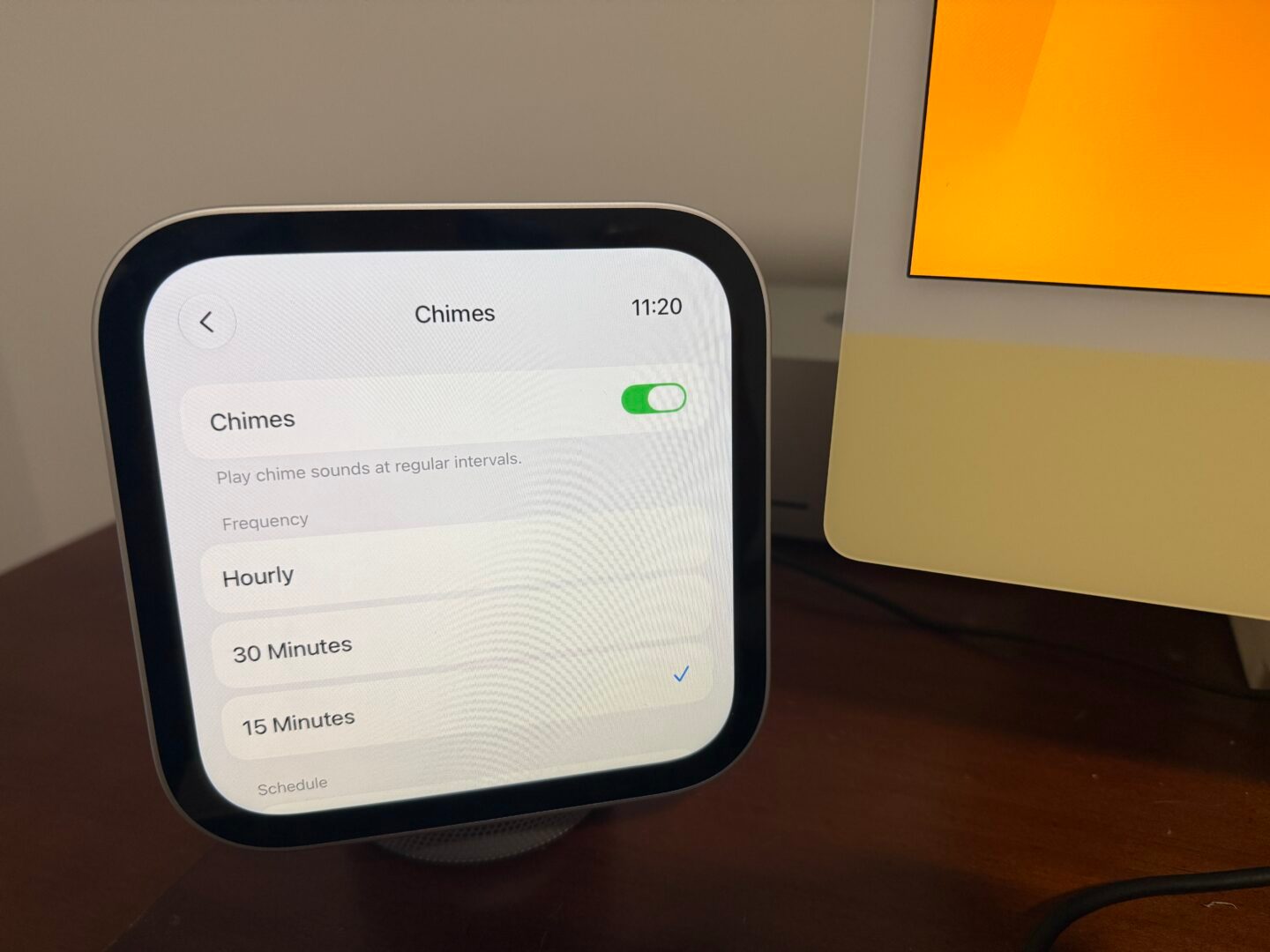
Image credit: Appleosophy
So these are my top 5 favorite tidbits you should know about Apple HomeView. If you’re interested in picking one up, I’d highly suggest you do so ASAP because the default model, which is the tabletop version, has been backordered at the time of this post, with shipping dates slipping into the first week of December at the earliest.
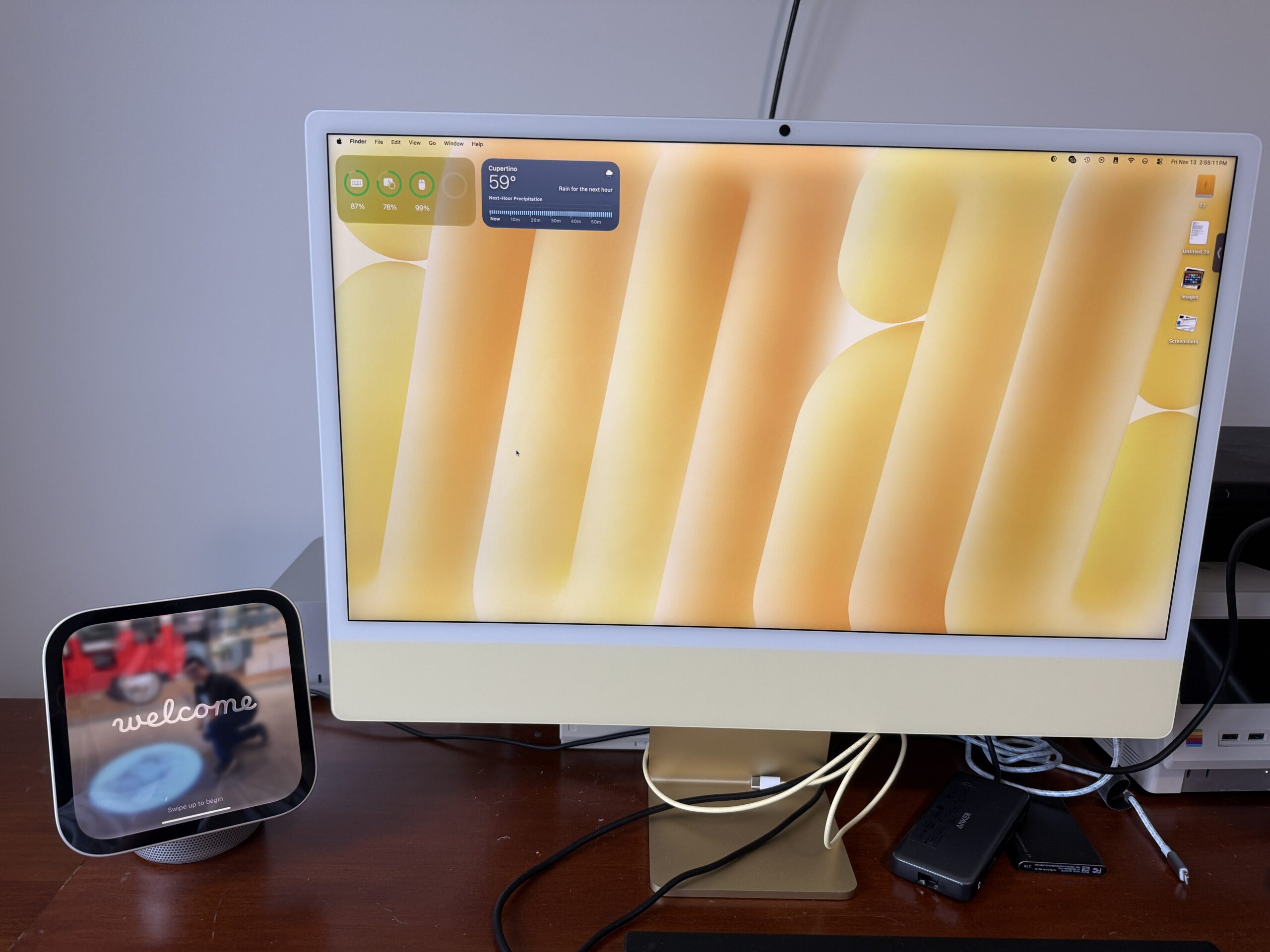
So far I’ve been loving mine; I think it’s such a cute addition to my office desk, and I think it complements beautifully with my iMac. I’ll definitely put out a review after several weeks of usage, so make sure you bookmark this site.
Will you be picking up the Apple HomeView, or have you already got yours delivered? Let us know in the comments below.
0 comments
No comments yet. Start a thoughtful conversation.