Losing important files from an SD card can be stressful, especially when the card stores photos, videos, project files, or camera footage you cannot easily replace. The good news is that deleted data is not always gone forever. In many cases, if you act quickly and avoid writing new data to the card, recovery is still possible.
This guide explains the most practical steps for SD card file recovery and shows when it makes sense to use a dedicated recovery tool like Recoverit.
Why SD Card Files Can Sometimes Be Recovered
When a file is deleted from an SD card, the storage space is usually marked as available instead of being erased immediately. That means the original data may still exist until new files overwrite it.
That is why the first rule of SD card recovery is simple: stop using the card right away. Do not keep taking photos, recording videos, or saving new files to it.
Step 1: Stop Using the SD Card
If you want the best possible chance of recovery, remove the SD card from the camera, phone, or computer as soon as you notice the file is missing.
Avoid:
- Taking more photos
- Recording new videos
- Formatting the card
- Copying new files onto the card
Every new action increases the chance of overwriting the deleted data.
Step 2: Check Common Backup Locations
Before using recovery software, check whether the file may already exist somewhere else.
Look in:
- Cloud backups
- Import folders on your computer
- Camera roll sync folders
- External drives
- Email attachments
- Device backup apps
Sometimes the file is not actually lost, just stored in another location.
Step 3: Use a Dedicated SD Card Recovery Tool
If the file is not in any backup location, the next step is to scan the card with a recovery tool. A reliable SD card recovery solution can help detect deleted files that are no longer visible in your file manager.
For users who want a broader data recovery software option, this approach is useful for SD cards, memory cards, USB drives, and other storage devices.
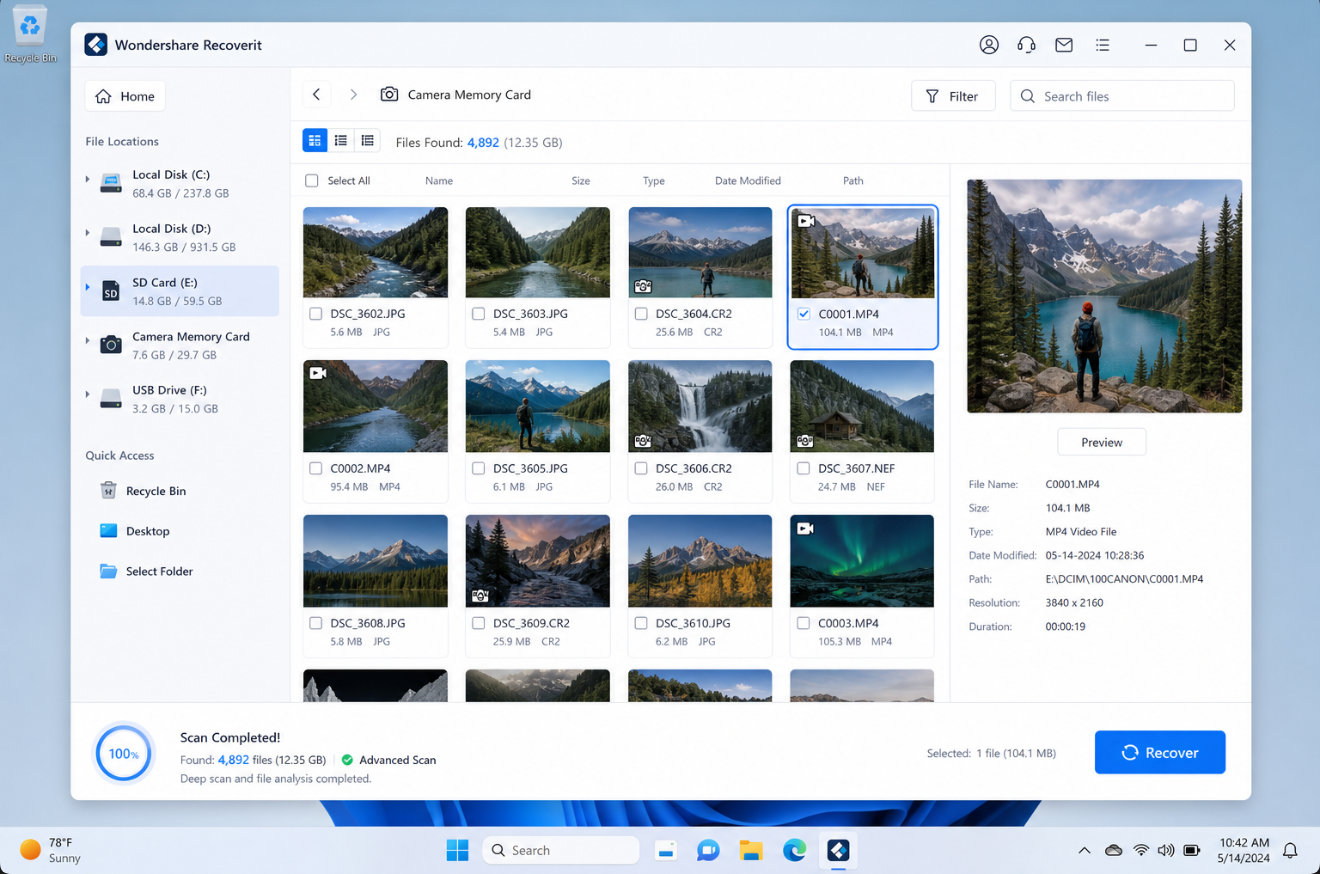
A tool such as Recoverit can help scan the card, preview recoverable files, and restore the items you need to a separate location.
Step 4: Scan the SD Card
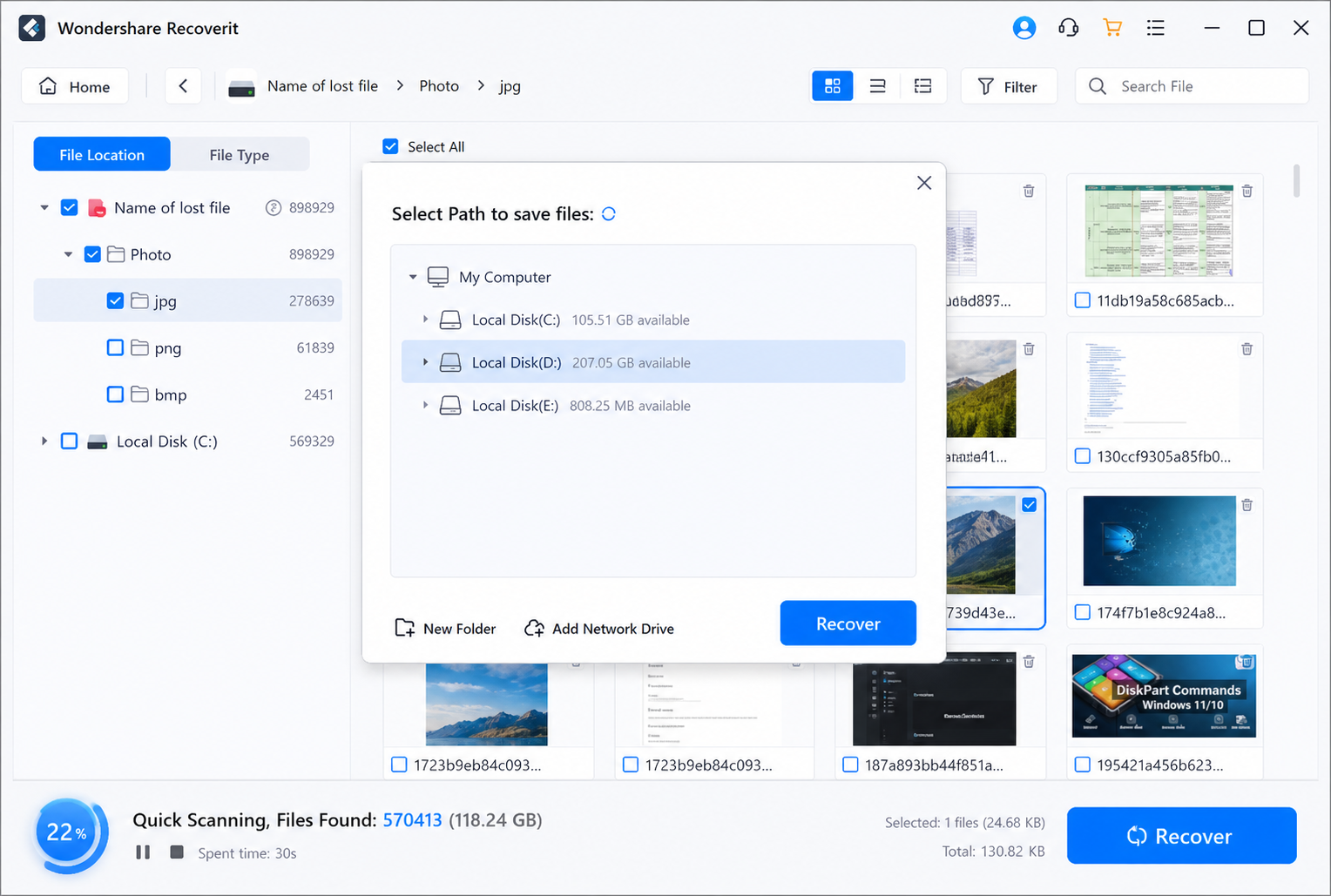
When you open the recovery software, select the SD card as the target device and start a scan.
A good workflow usually includes:
- Select the SD card
- Run a quick scan first
- If needed, run a deep scan
- Review the recoverable files
- Preview the files before restoring them
Deep scans usually take longer, but they may find more deleted data.
Step 5: Preview and Recover the Right Files
Once the scan is complete, check the file list carefully. Many recovery tools let you preview photos, videos, documents, and other common file types before recovery.
Recover only the files you need first. This is especially helpful if the SD card is unstable or contains a large number of deleted items.
Important: save the recovered files to a different drive or folder, not back to the same SD card. That helps reduce the risk of overwriting other recoverable data.
Step 6: Handle Corrupted or Unreadable Cards Carefully
If the SD card is corrupted, not recognized, or shows an error message, do not format it immediately. In many cases, formatting can make recovery more difficult.
Instead, try:
- Testing the card in another reader
- Checking another device
- Running a recovery scan before any repair attempt
If the card is physically damaged, software recovery may not be enough, and professional help may be required.
Best Practices to Prevent Future Data Loss
To reduce the risk of losing files again, try these habits:
- Back up files regularly
- Use multiple storage locations
- Copy important photos and videos after each shoot
- Replace old or unstable SD cards
- Avoid removing the card while files are being written
A simple backup routine can save a lot of time later.
Conclusion
SD card file recovery is often possible if you act fast and avoid writing new data to the card. Start by checking backups, then use a dedicated recovery tool to scan the card and preview the deleted files. The sooner you begin, the better your chances may be.
If you need a practical way to recover files from an SD card, a tool like Recoverit can help you search for lost data and restore it safely.