
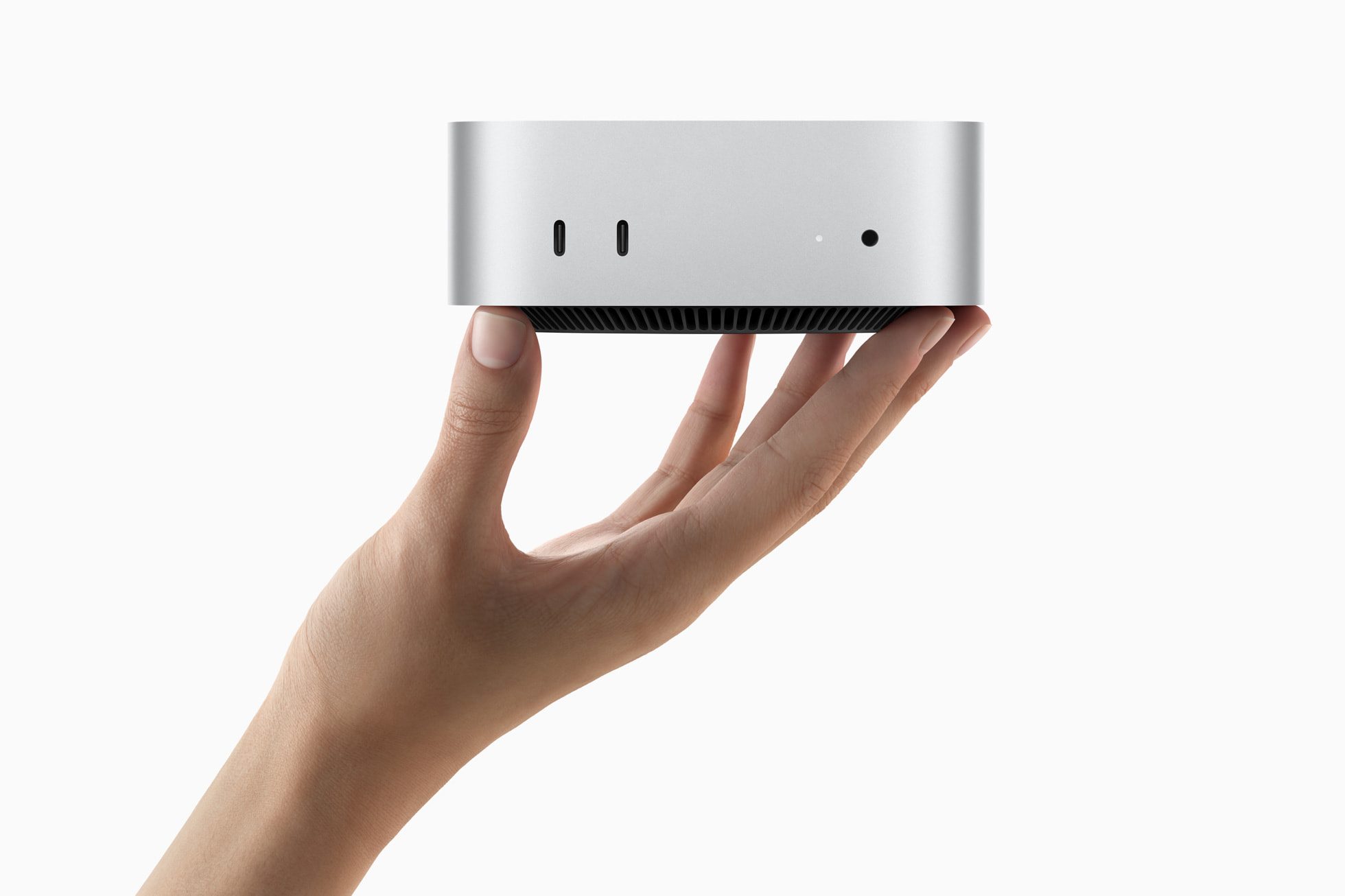
For years, to start up a desktop Mac, you would have to press the power button on that machine. While it may be the most straightforward thing to do, it could also be very inconvenient if you’ve set up your (desktop) Mac as a server, or if you’re some sort of IT professional, you could have a cluster of Mac minis as your server farm, as an example. This would be especially inconvenient for the current Mac mini, as the redesign has had the power button on the underside as opposed to the back. Before, the only time that a Mac desktop would automatically reboot was after a power failure or a power outage after a huge thunderstorm.
You may have remembered that MacBooks with Apple silicon have the ability to automatically boot up when either opening the lid or being connected to power. Starting with macOS 26.5, it looks like Apple is bringing some of that magic to some of its recent Mac desktops. With this recent update, Mac desktops will have a new option to automatically start up when they are plugged into a power outlet. This is essentially useful for users who want to connect their desktop Macs to their smart HomeKit-enabled plugs, so they can “remotely” turn on their machines via the Home app, for example. This is also useful for travelers who don’t want to keep their Mac desktops running while they’re out of town. They can just “remotely” turn on their Mac desktops using that scenario and just remote-access via the built-in Screen Sharing app.
As mentioned before, you would need to update to macOS 26.5 as the prerequisite; however, only the recent Mac desktops will support this feature, according to Apple’s support article:
- iMac introduced in 2024 or later (models with M4 and later)
- Mac mini introduced in 2024 or later (models with the M4, M4 Pro, and later)
- Mac Studio introduced in 2025 or later (models with the M4 Max, M3 Ultra, and later)
Sadly, the Mac Pro won’t support this feature as the last model had the M2 Ultra chip before it was discontinued, and Apple had no plans to update that machine. (Sorry Mac Pro users out there)
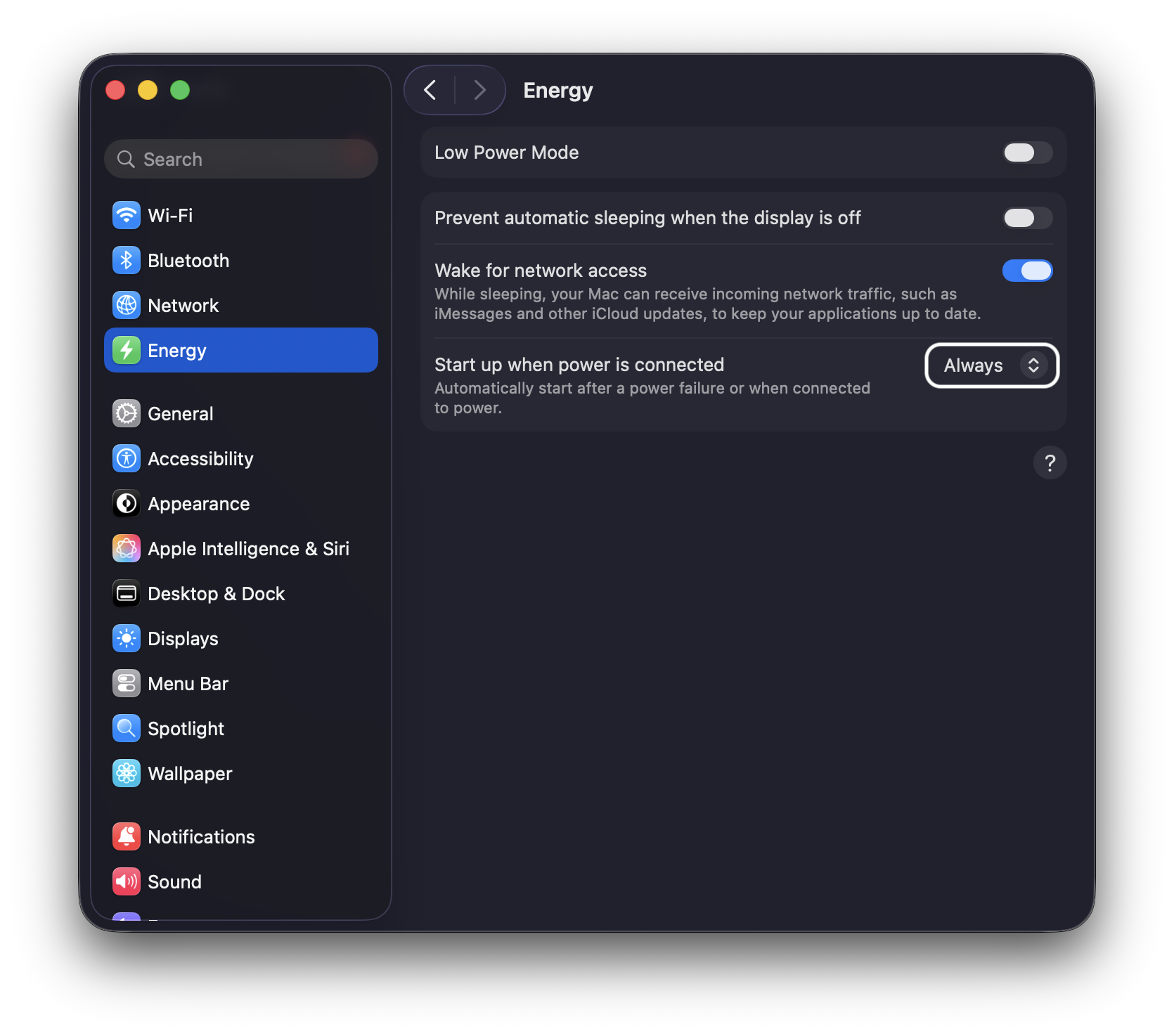
Setting up this option is quite simple if your machine meets the system requirements:
- Open the System Settings app.
- Click Energy in the sidebar.
- In the section where it says “Start up when power is connected”, click the drop-down menu and select Always.
Last, but not least, Apple recommends you wait approximately 30 seconds between disconnecting and reconnecting power to turn on your Mac desktop to allow time for the power supply to discharge.
While some users may look forward to the refinements that macOS 27 will offer, this feature alone should come in very handy for Mac desktop users. Will you be using this feature if you own a Mac desktop? Sound off in the comments below.
Comments
Comments will load as you approach this section.